Saving a Data File in SPSS
It is very important to save data file when you are working with SPSS. SPSS will not save it for you.
Then, you must do it manually and frequently enough in case thing goes wrong, such as a sudden blackout. How to do it?
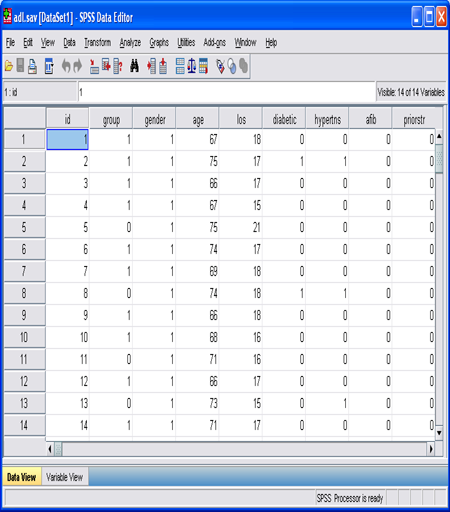
Go to the File menu (top left hand corner) and choose Save.
You can also just click on the icon that looks like a floppy disk which appears on the toolbar at the top, left of your screen. Or you can use shortcut by pressing Ctrl + s on your keyboard.
If you are working with a new data and has not been saved, SPSS will ask you to specify a name for the file and to indicate a directory and a folder that it will be stored in. Choose the directory and then type in a file name. SPSS will automatically provide all data file names the extension .sav
Technorati Tags: SPSS, SPSS 16.0, SPSS tutorial, spss manualThen, you must do it manually and frequently enough in case thing goes wrong, such as a sudden blackout. How to do it?
Go to the File menu (top left hand corner) and choose Save.
You can also just click on the icon that looks like a floppy disk which appears on the toolbar at the top, left of your screen. Or you can use shortcut by pressing Ctrl + s on your keyboard.
If you are working with a new data and has not been saved, SPSS will ask you to specify a name for the file and to indicate a directory and a folder that it will be stored in. Choose the directory and then type in a file name. SPSS will automatically provide all data file names the extension .sav